GUIDE
How to Make a Wiggle GIF
To make a wiggle GIF, upload a still image, paint only the part that should move, preview the wobble, and export the result as a short loop. The best results come from a simple three-stage workflow: prepare the image, define the motion, then tune the export.
Last updated: July 22, 2026
Quick answer
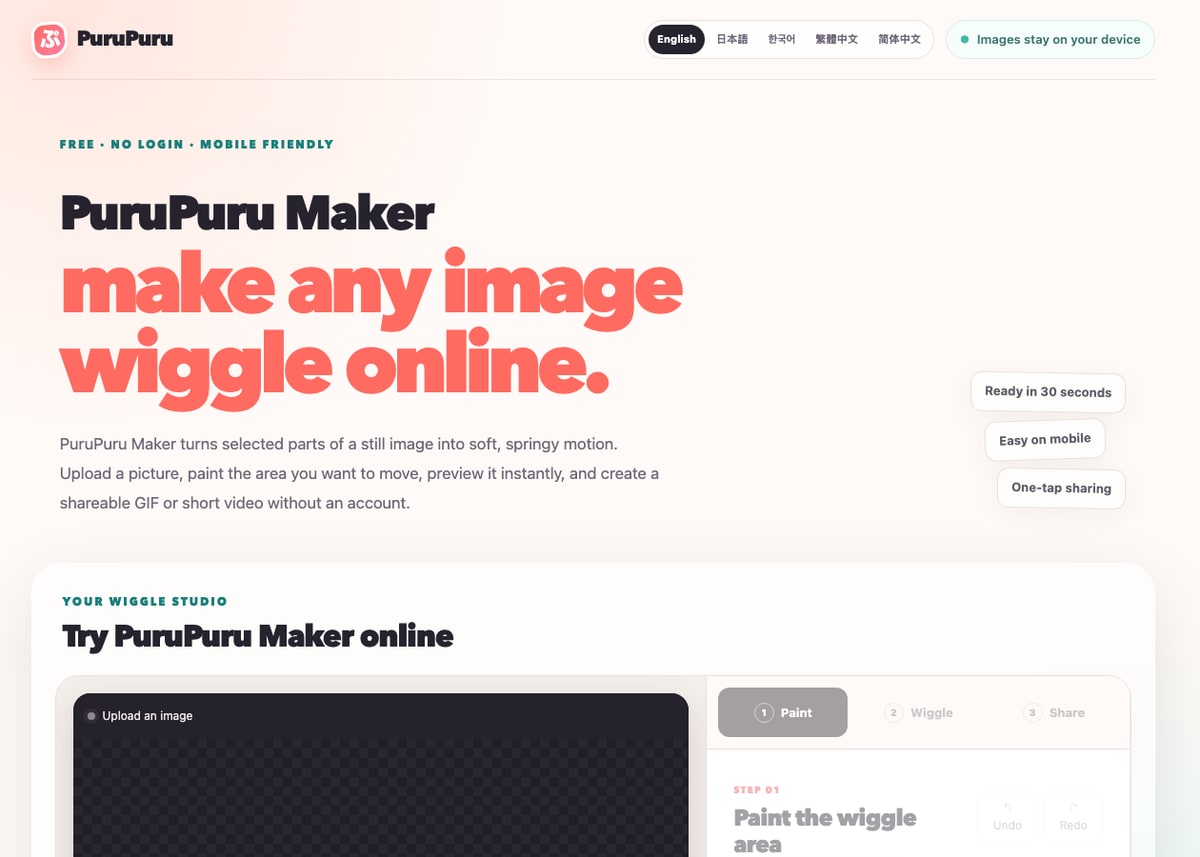
A wiggle GIF is a short looping animation where one selected part of a still image moves while the rest stays visually stable. In PuruPuru Maker, the process is browser-based: open the image, brush over the moving area, test the spring motion, and save the file.
The most common mistake is trying to animate too much of the image. A cleaner wiggle GIF usually moves one soft or expressive detail, such as an ear, hair tip, ribbon, sleeve, plush edge, charm, cheek, or tail.
Stage 1: prepare the image
Choose an image where the moving part is easy to separate from the stable part. Pet ears, hair ends, ribbons, plush edges, keychains, cheeks, and soft accessories usually work better than flat backgrounds or tiny distant subjects.
Avoid painting the whole image unless the effect is intentionally exaggerated. A smaller mask gives a cleaner motion and keeps faces, text, and product details readable.
- Use PNG, JPEG, WebP, HEIC, or HEIF when your browser supports it.
- Pick a subject with clear edges and enough space around the moving detail.
- Avoid images where text, eyes, logos, or product labels sit inside the moving area.
Stage 2: paint the motion area
Start with a medium brush, paint the area that should wobble, and then erase around edges that should remain anchored. The mask does not need to be perfect, but it should follow the general shape of the soft part.
Use lower brush strength near transition areas. This helps the motion blend into the still area instead of creating a hard bend.
- For hair, paint the ends instead of the scalp.
- For ears or tails, leave the base slightly stable so the motion feels attached.
- For product photos, keep logos, seams, and readable packaging text still.
Stage 3: tune and export
Preview the motion before exporting. If the image looks rubbery, lower strength. If it feels too slow for a reaction image, increase speed or use a quick tremble preset.
For chat apps, GIF is widely compatible. For social posts, a short video can be smaller and smoother when the browser supports it.
- Use a soft jiggle for natural pet or plush motion.
- Use side sway for hair, ribbons, earrings, and hanging charms.
- Use quick tremble for meme reactions, but avoid making the loop visually harsh.
Common problems and fixes
If the whole image seems to bend, reduce the mask area and repaint only the soft detail. If the moving edge looks disconnected, add a lighter paint transition near the base. If the GIF file is too large, try a smaller image or export a short video instead.
If mobile sharing fails, save the file first and attach it from the destination app. Some mobile browsers restrict native file sharing by size or format even when the animation itself was generated correctly.
FAQ
Can I make a wiggle GIF without uploading to a server? Yes. PuruPuru Maker processes the image, mask, preview, and export in the current browser.
What is the easiest first test? Use the sample image, paint one obvious soft area, choose Soft Jiggle, and export a GIF before trying a complex personal image.
Should I export GIF or video? Choose GIF for broad chat/forum compatibility. Choose video when you want smoother motion and smaller files for social posting.
Next step
Open the PuruPuru Maker studio from the homepage, upload a simple image, and make one small moving region first. After that, compare the result with the best-image guide and the GIF vs video export guide.